Manage client permissions
This page explains how to open a client's Permissions tab and use the user permission procedures to manage client permissions.
Client permissions behave in the same way as user permissions. To avoid repetition, this page shows how to open the Permissions tab on a client and links to the complete permission procedures.
Important
Follow Manage user permissions for the complete add, update, and remove procedures and messages.
Navigate to the client Permissions tab
-
Open the Clients List page and find the client for which you want to add permissions.
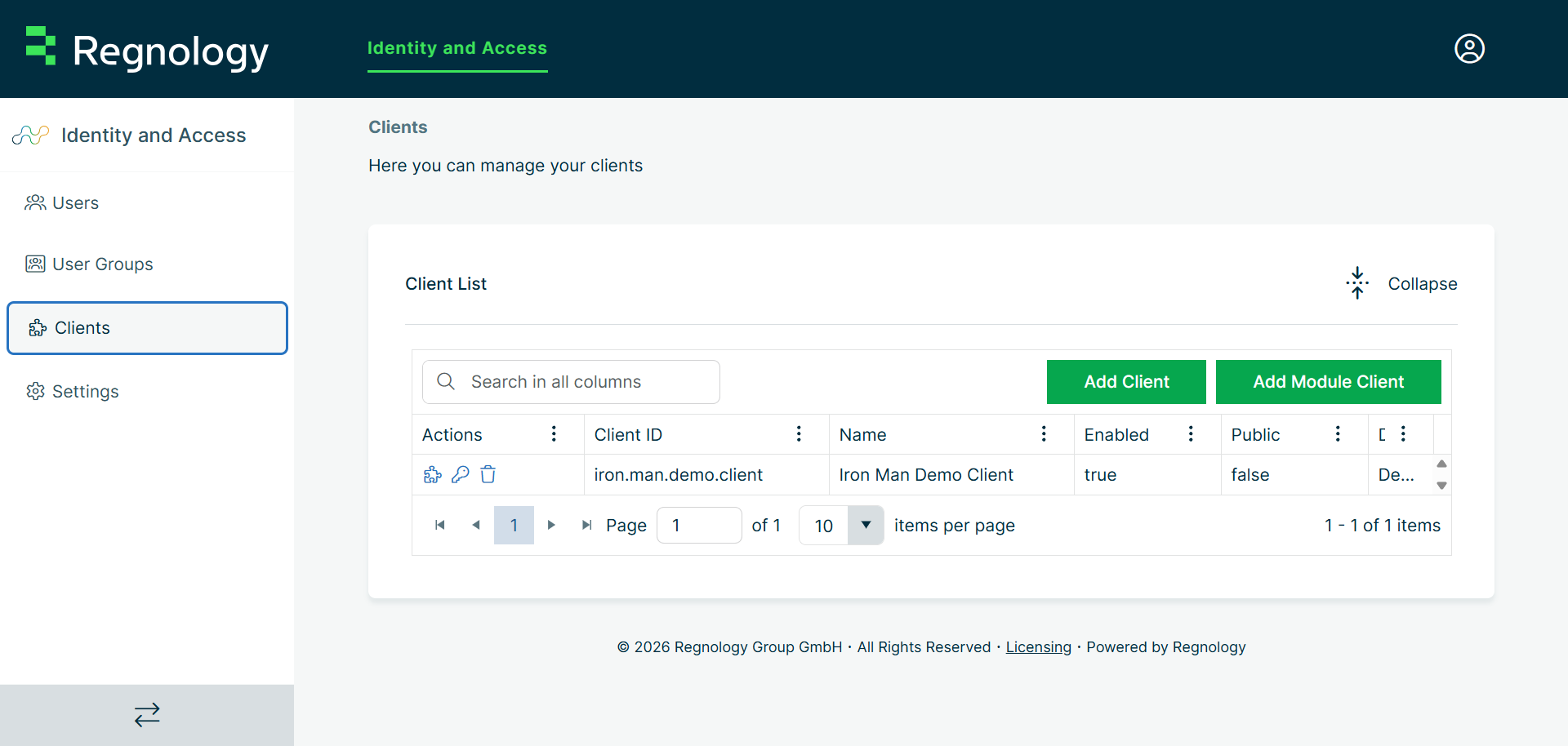
Figure 18. Client List showing iron.man.demo.client
-
In the Actions column for that client, click Client Details (puzzle-piece icon). Do not click Get Secret or Delete Client.
-
The client Details screen opens (Details / Permissions / Secret).
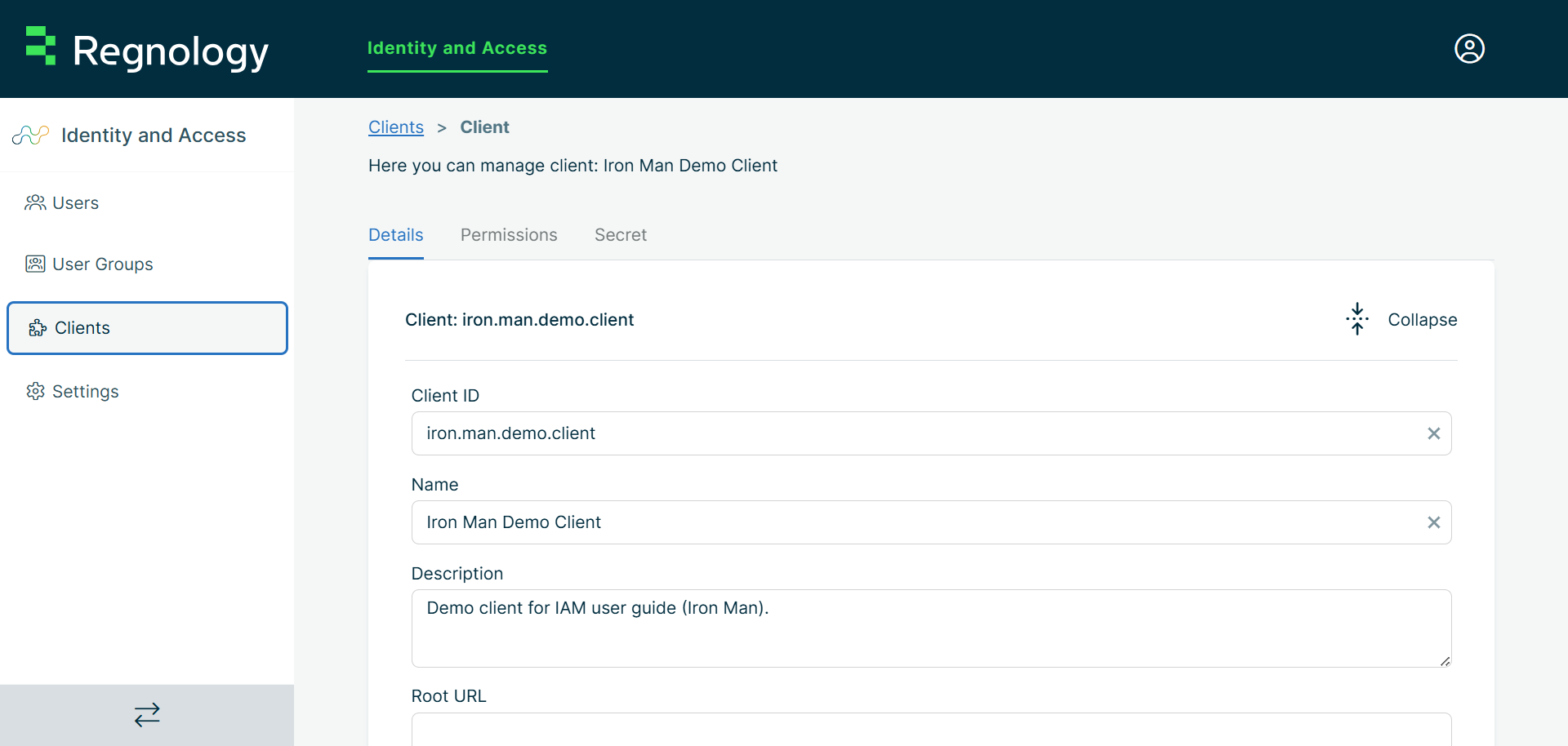
Figure 19. Client Details before opening Permissions
-
Open the Permissions tab. You should see the Permissions list for this client and the Add Permission button.
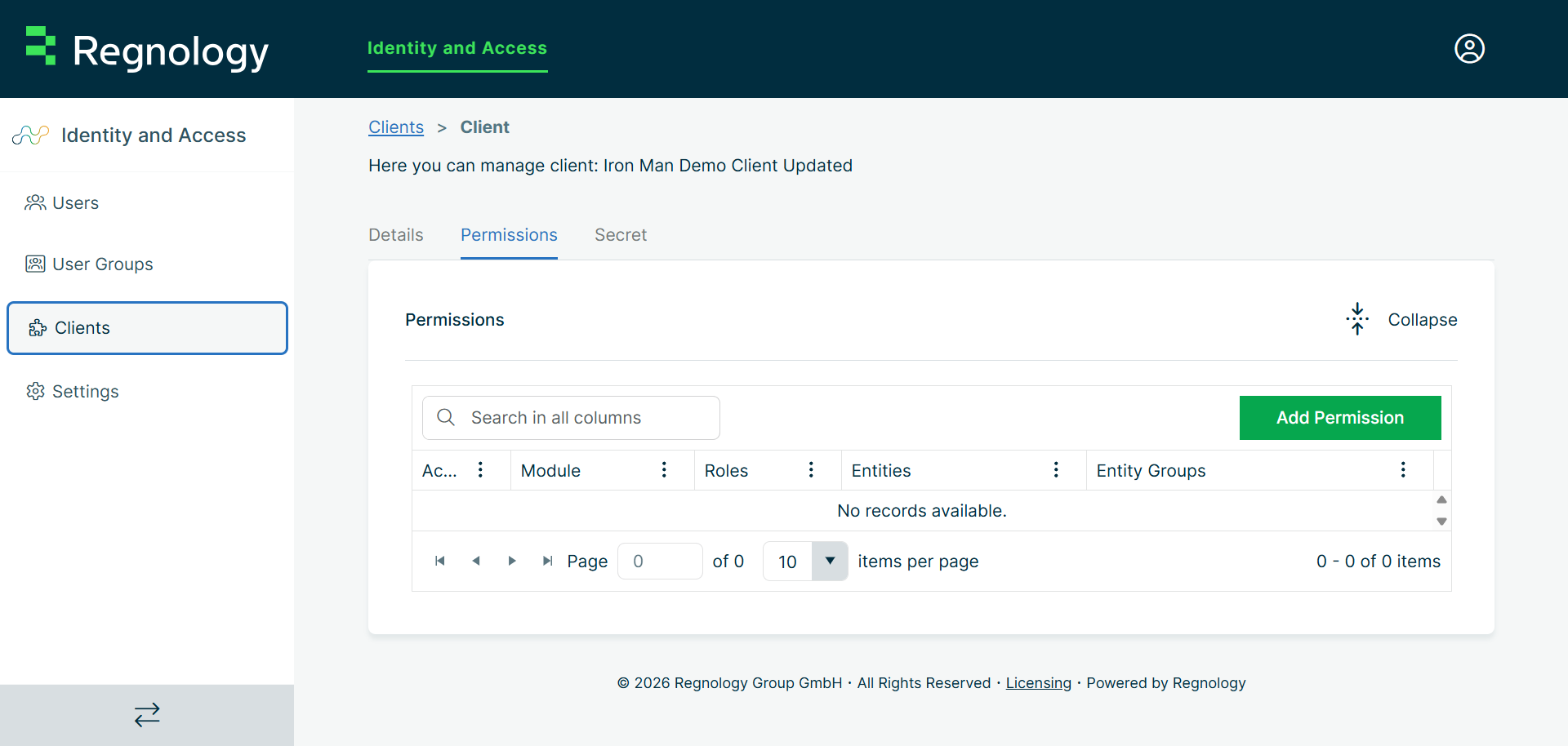
Figure 20. Client Permissions tab (landing view — no permission actions performed)
-
From this screen, Add Permission / Edit Permission / Delete Permission behave the same way as documented for users in Add / Update / Remove Permissions of Users. Use that section for the full permission procedures and messages.