Reset a user password
This section explains how to send a password reset email to a user from the Credentials tab.
-
Go to IAM application → Users. Find user in the User List (use Search in all columns if needed), or use pagination at the bottom of the list.
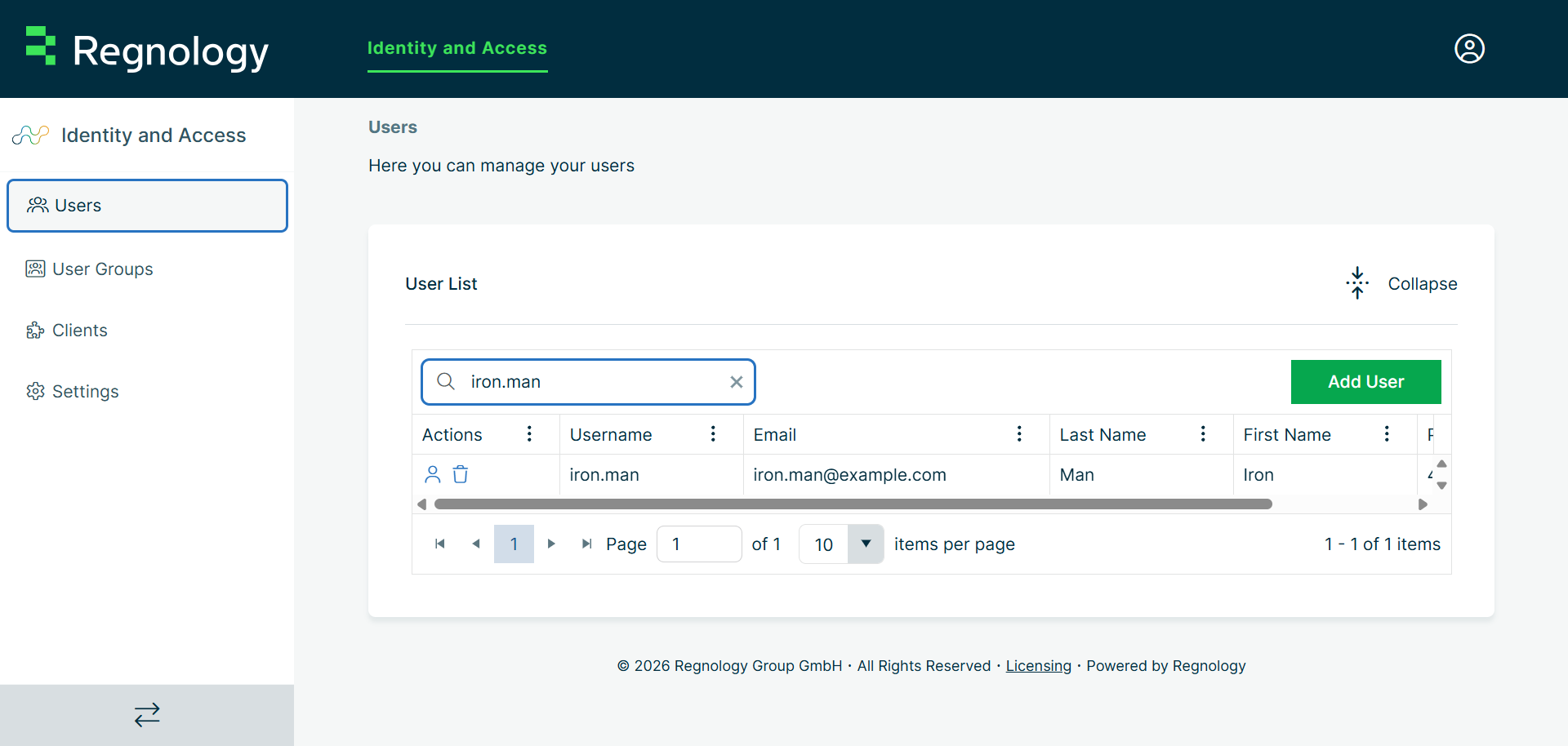
Figure 59. User List showing iron.man
-
In the Actions column for that user, click the User Details icon. Do not click the Delete (trash) icon.
-
The user Details screen opens.
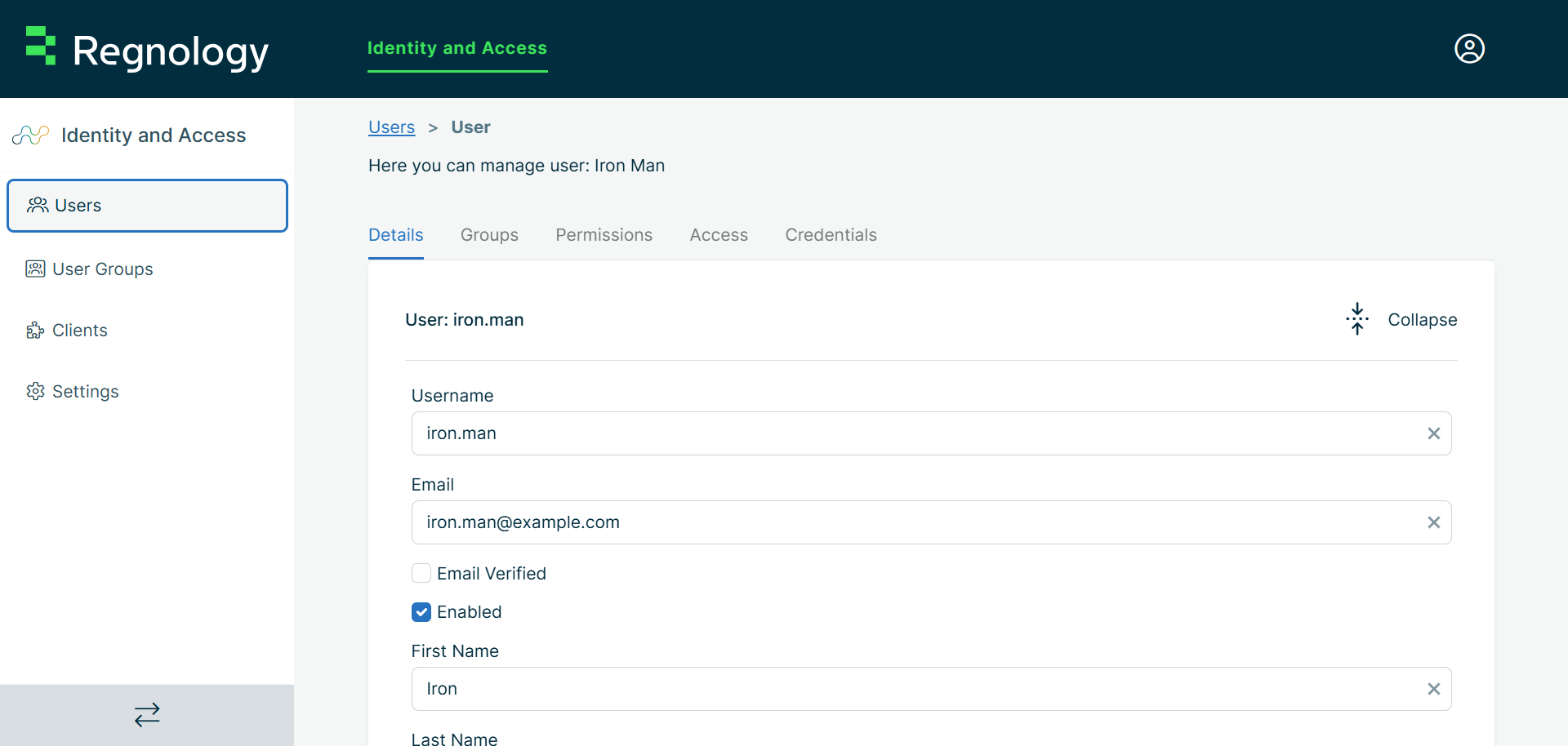
Figure 60. User Details for Iron Man
Open the Credentials tab
-
On the user screen, open the Credentials tab (next to Access). You should see the Credentials panel with the Send Reset Password Email button.
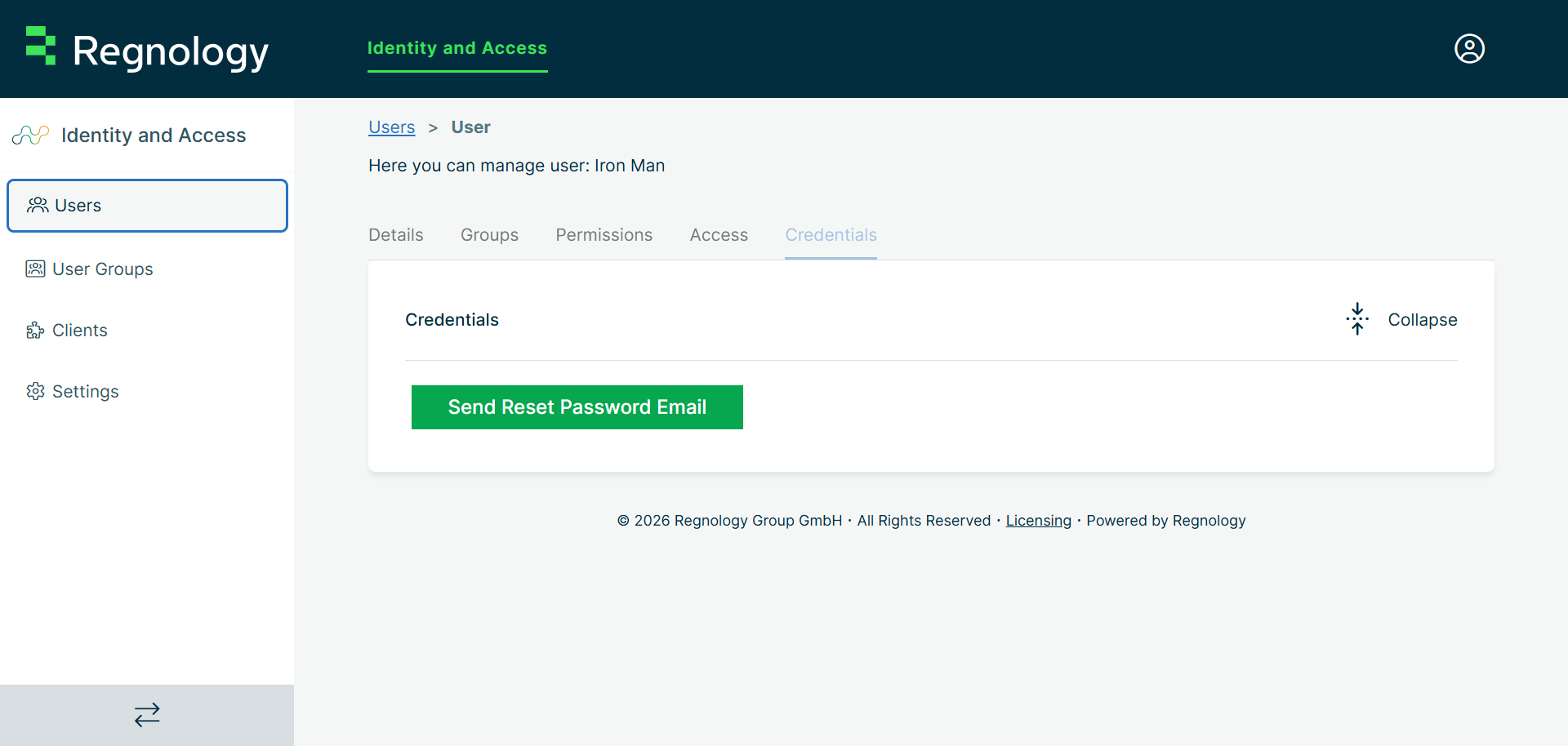
Figure 61. Credentials tab with Send Reset Password Email
Send password reset email — success
-
Click Send Reset Password Email. This sends a password reset email to the user's registered email address (the Email shown on the user Details page).
-
Success message: "Password reset email sent"
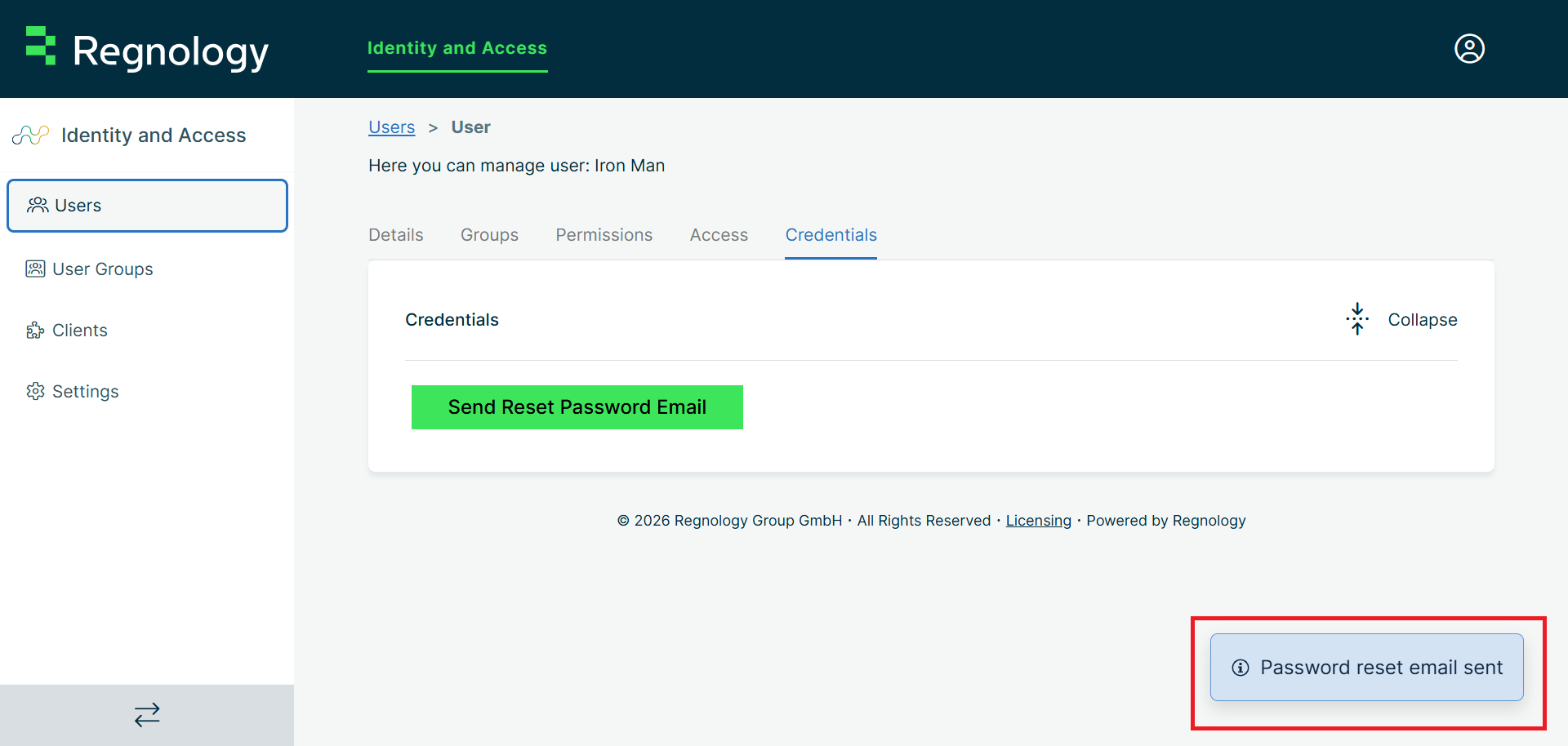
Figure 62. Success message after sending the password reset email
Failure note: No validation failure message was observed for this action. The Credentials tab has no required form fields to invalidate; the only action is Send Reset Password Email. No separate failure toast was produced during this documentation run.