Manage subgroup permissions
This section shows how to open the Permissions tab on a subgroup. The functionality in the Permissions tab of subgroups behaves in the same way as described in Manage user group permissions; therefore, this section does not repeat the procedures for adding, updating, or removing permissions.
Important
Permissions for subgroups work the same way as permissions for user groups (unscoped and scoped), as described in Manage user group permissions. The same module compatibility rules apply: an unscoped group can only use modules that support unscoped assignment, and a scoped group can only use modules that support scoped assignment.
Navigate to the subgroup Permissions tab
-
Open the parent user group "Fantastic Four" and go to the Subgroups tab.
-
In the Subgroups list, find "Fantastic Two".
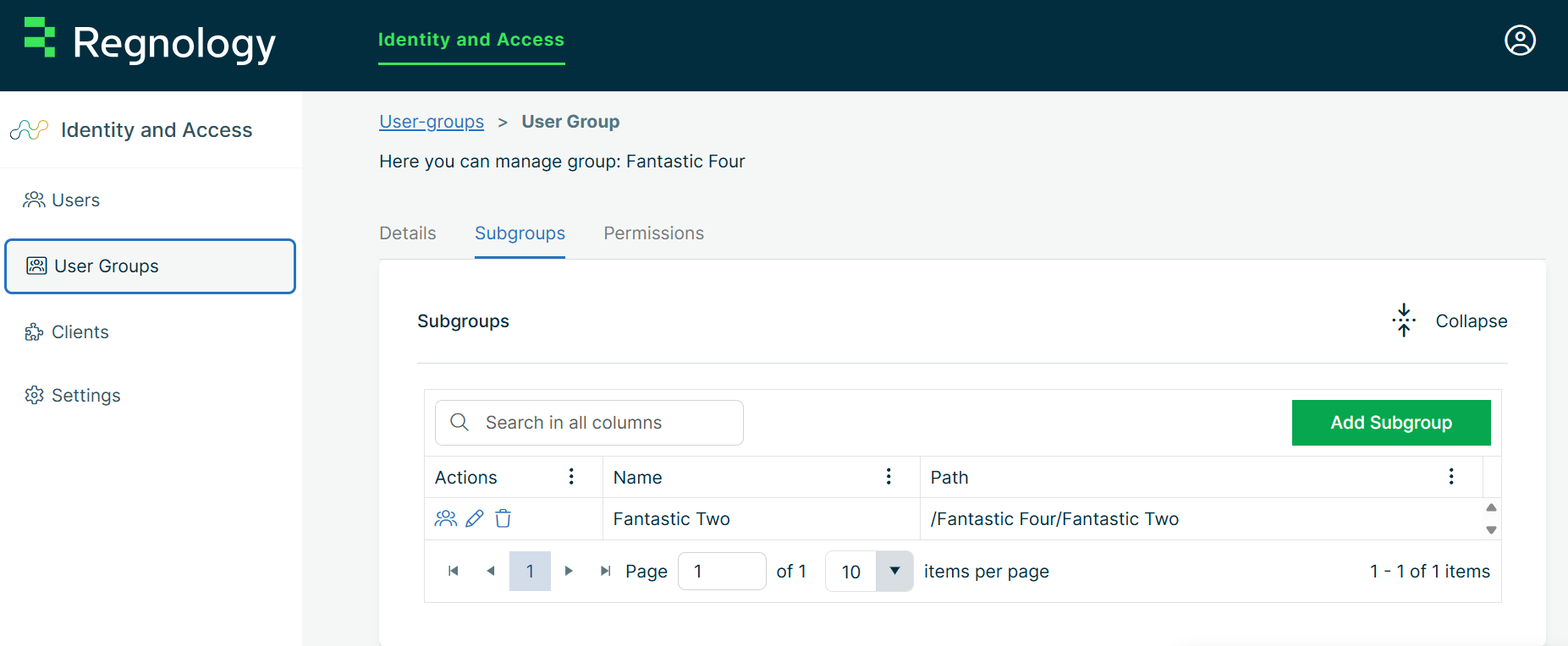
Figure 54. Subgroups list showing Fantastic Two
-
In the Actions column for "Fantastic Two", click View Group Details. Do not click Edit Subgroup or Delete Subgroup.
-
The subgroup Details screen opens for "Fantastic Two" (Details / Subgroups / Permissions tabs).
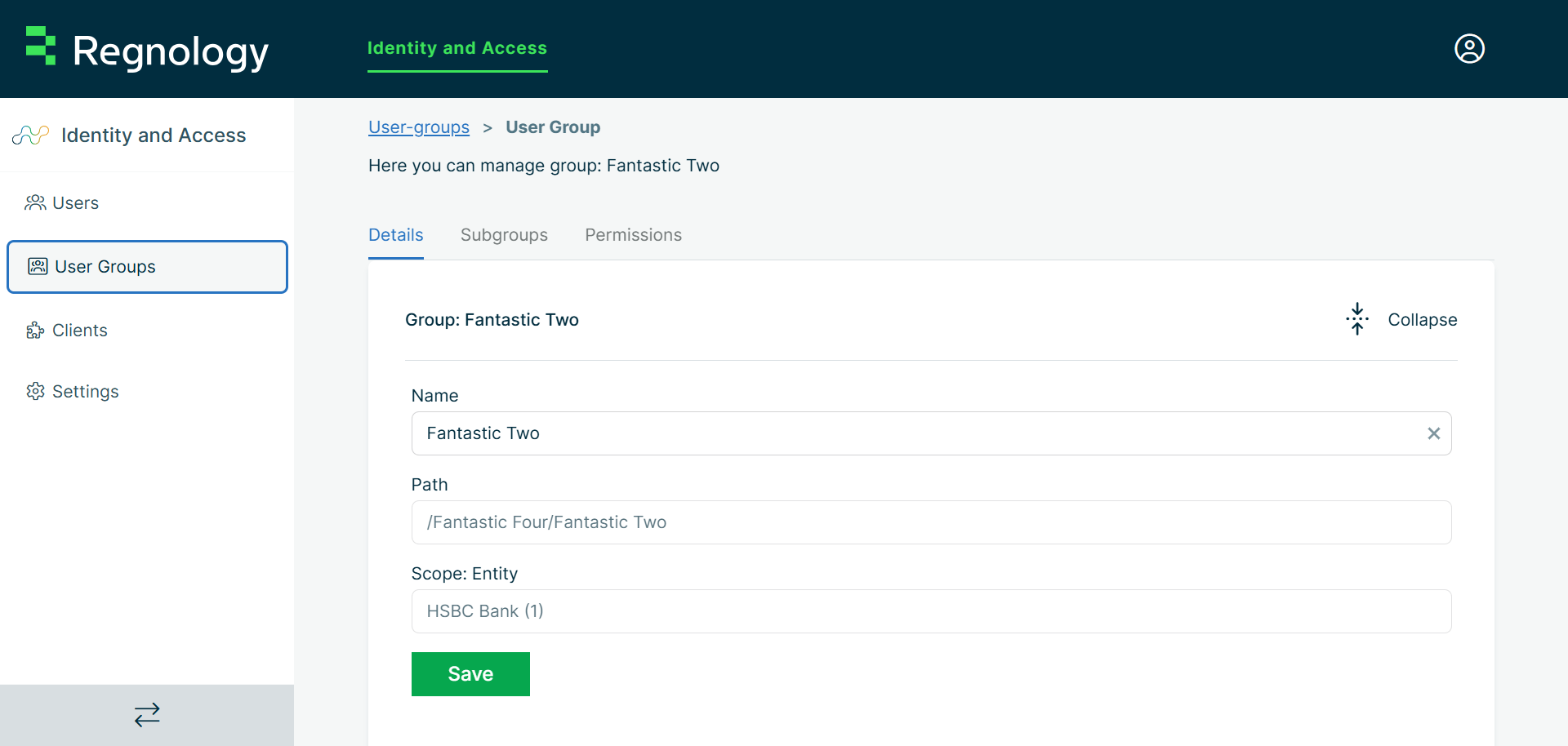
Figure 55. Subgroup Details for Fantastic Two
-
Open the Permissions tab. You should see the Permissions list for this subgroup and the Add Permission button.
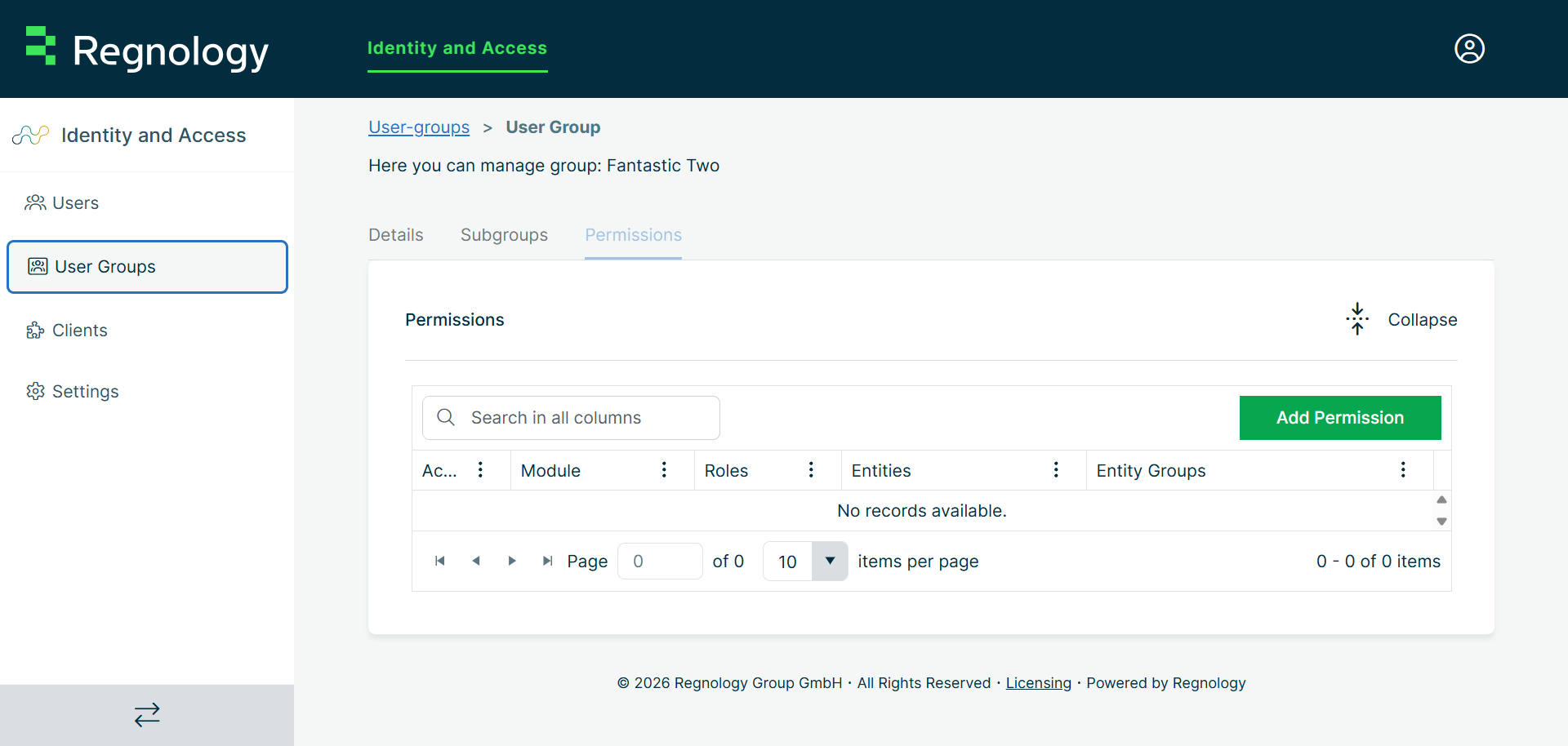
Figure 56. Fantastic Two Permissions tab (landing view — no permission actions performed)
-
From this screen, Add Permission / Edit Permission / Delete Permission behave exactly as documented in Manage user group permissions, including cross-scope validation.
-
In this example, "Fantastic Two" inherits the scoped parent ("Fantastic Four" → "HSBC Bank (1)"), so it is treated like a scoped group when choosing modules. The scoped-group procedures are described in Manage user group permissions.