View and update mirrored permission
This page explains how to view a source permission from a mirrored row and update the source permission.
-
In the mirrored permission row, click the link icon (View source permission) in the Actions column.
-
The View Source Permission dialog opens and shows the source permission (Module: IAM-Module, Action: View (view), Resource: Users (users)). This dialog is a read-only view of the source. You cannot edit fields until you click Edit.
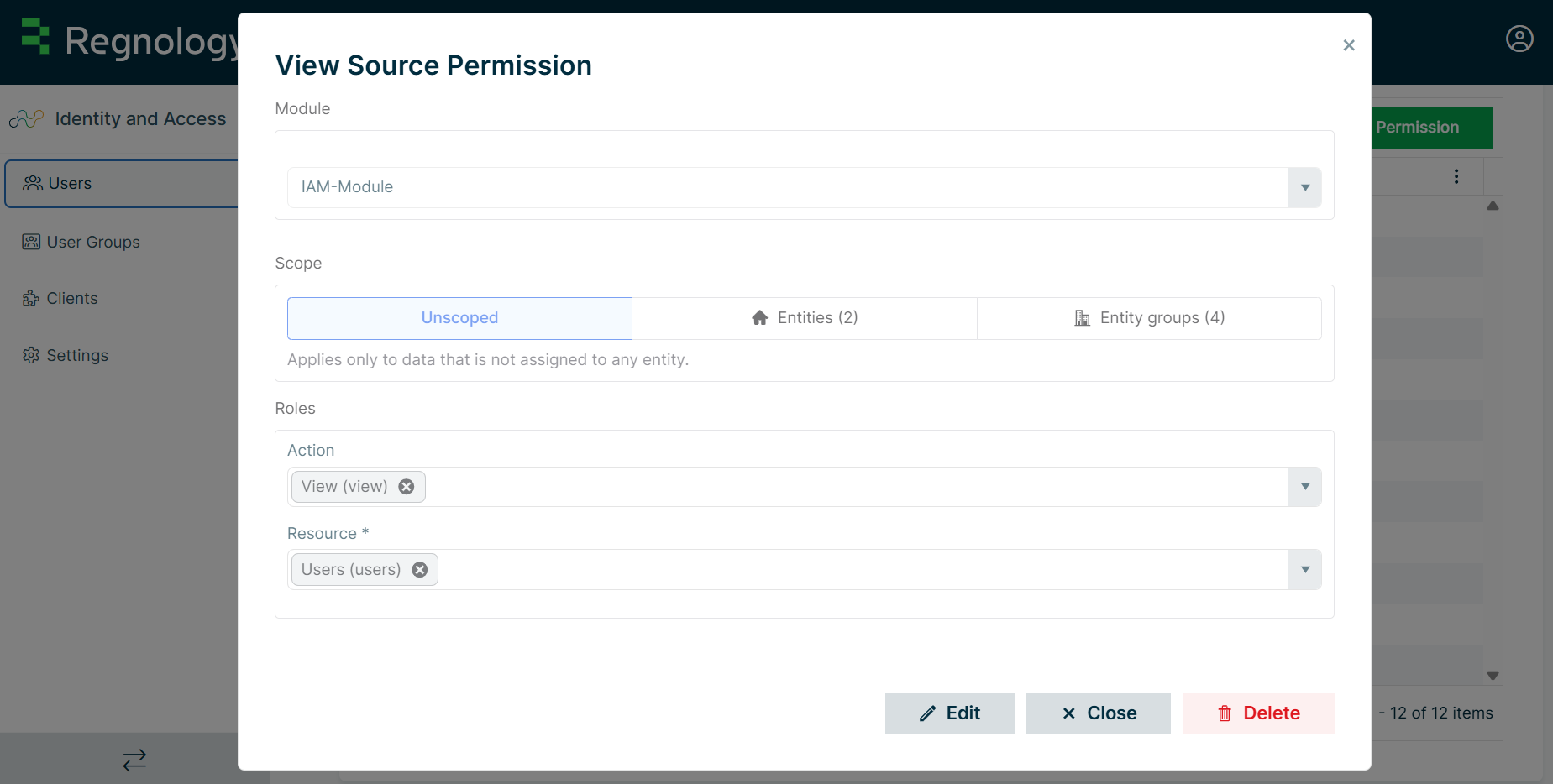
Figure 7. View Source Permission dialog (read-only source view)
-
Click Edit in the View Source Permission dialog.
-
The Update Permissions dialog opens for the source permission.
Note
You can also open this Update permission dialog box by directly clicking the edit icon in the Actions column of the source permission row.
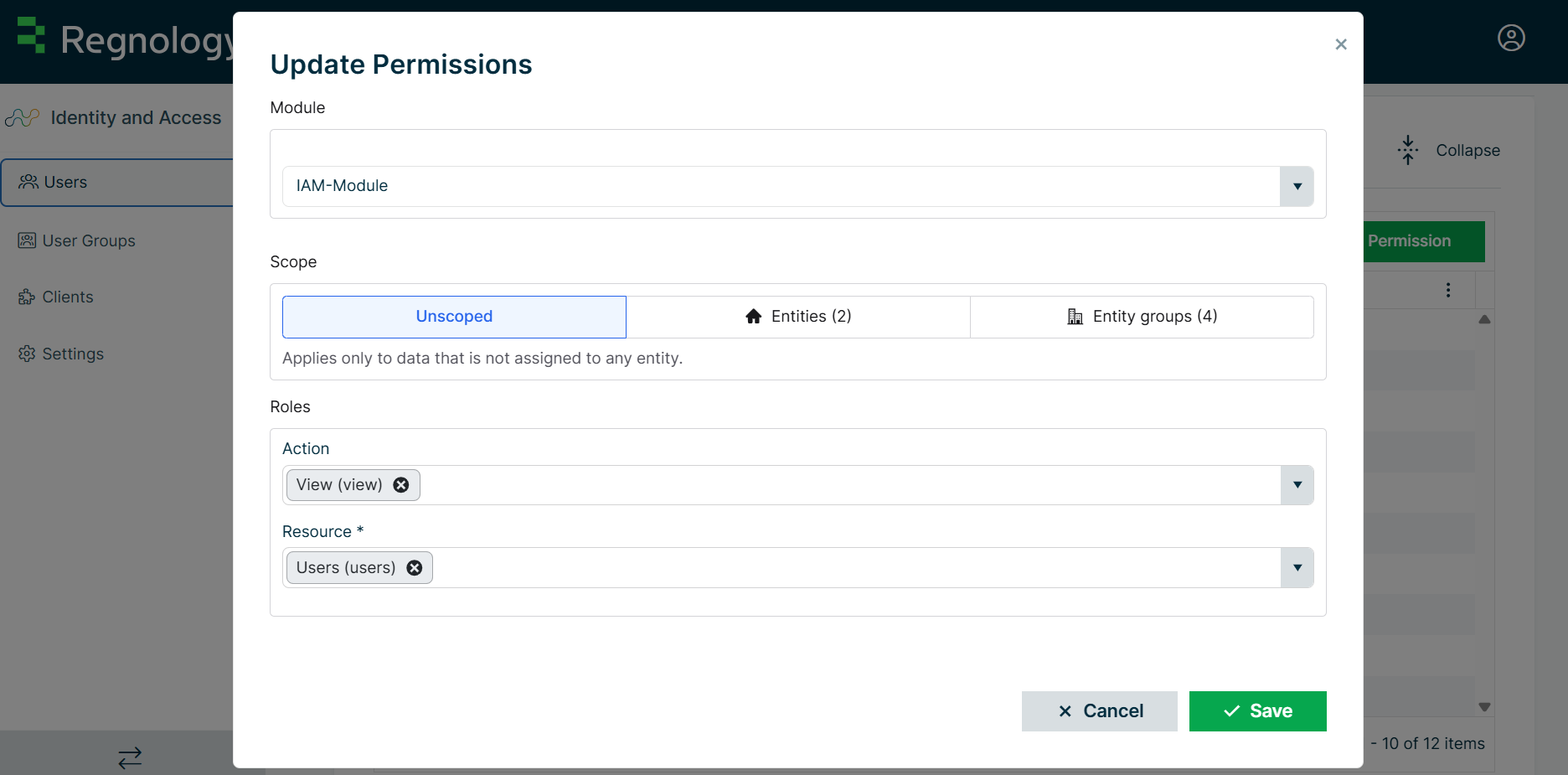
Figure 8. Update Permissions dialog opened from the source view
-
Under Roles → Action, change Action from View (view) to Manage (manage). Keep Resource: Users (users).
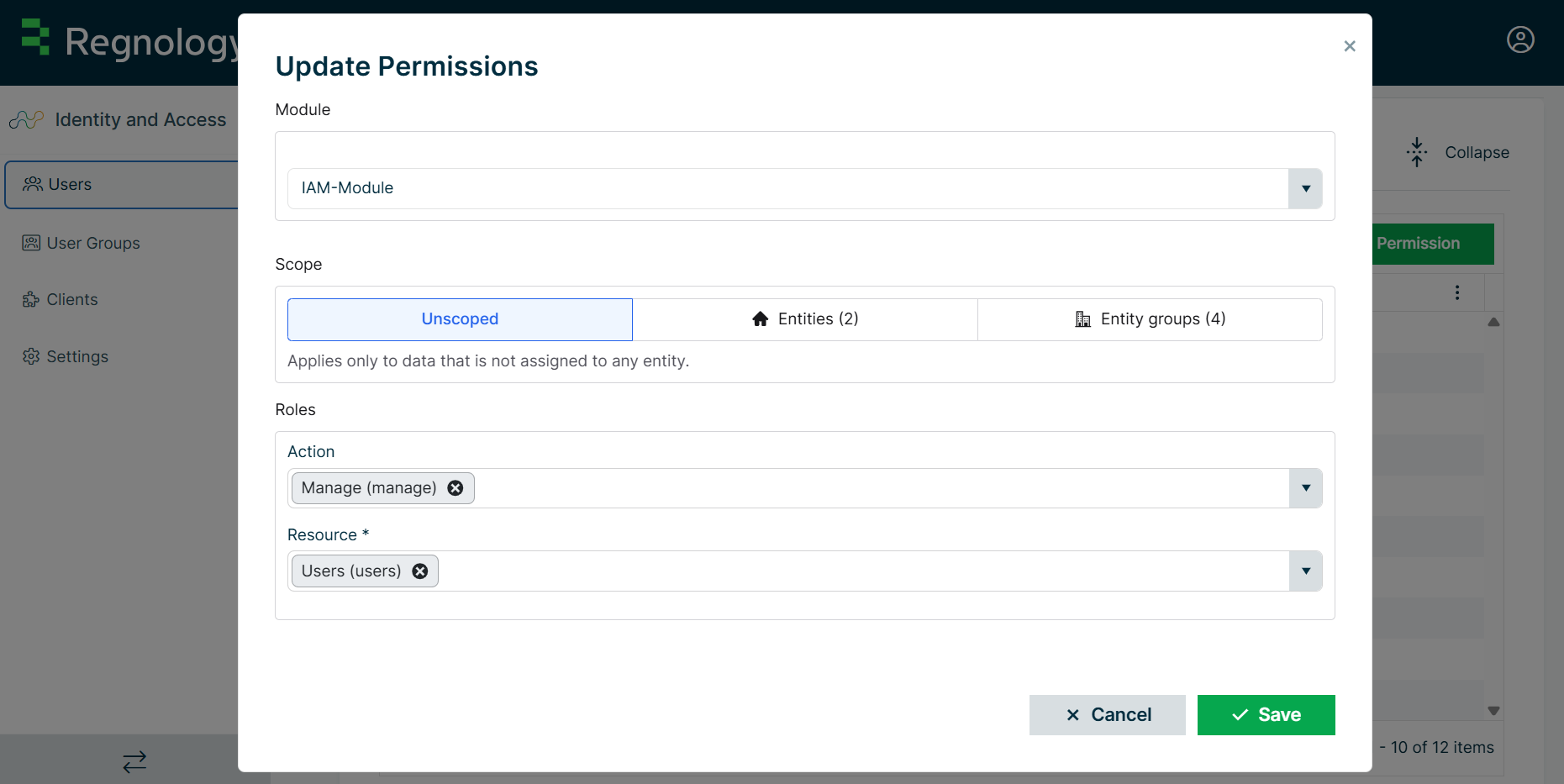
Figure 9. Update Permissions form with Manage / Users
-
Click Save.
-
Success message: Permission updated
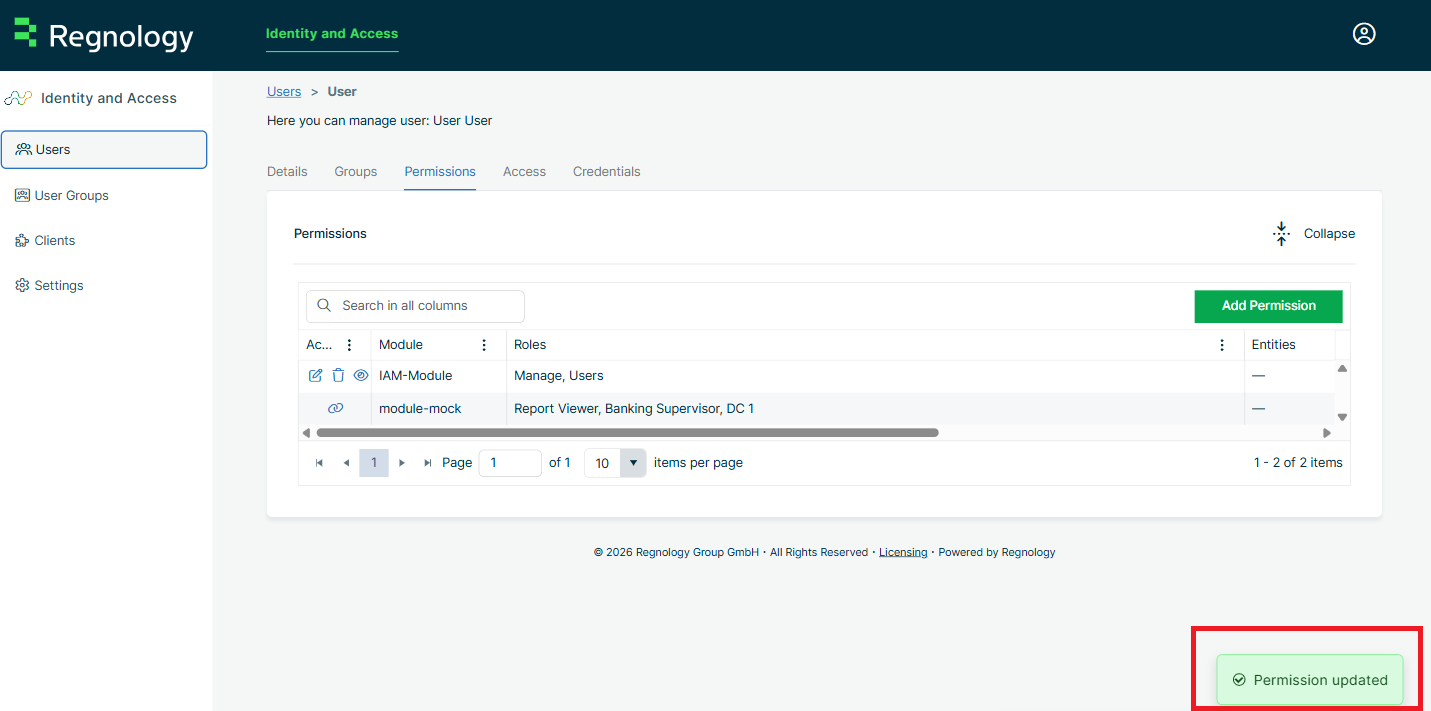
Figure 10. Success message after updating the source permission
-
Confirm the Permissions list shows the updated source permission (Roles: Manage, Users). The mirrored permission remains in the list and stays read-only (link icon only). Mirrored permissions can be updated only by updating the source permission.
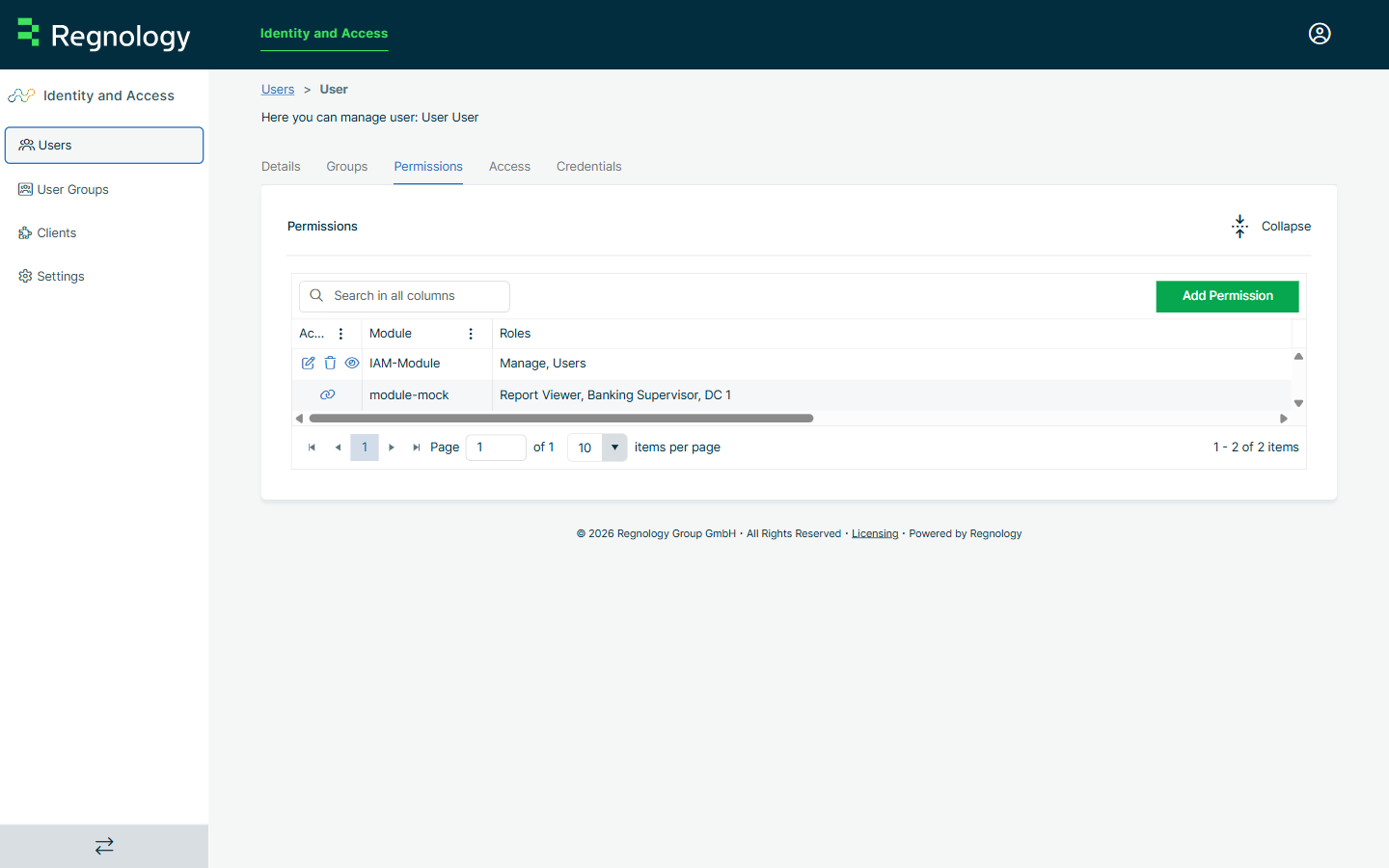
Figure 11. Permissions list after updating the source permission